Customising Your Display
Display & Filter Options
At the top of each page you have the ability to search the current display, filter the company, business area you are viewing and change the language display. See example below

Search: Allows you to search/filter the current display, for a document number or description text.
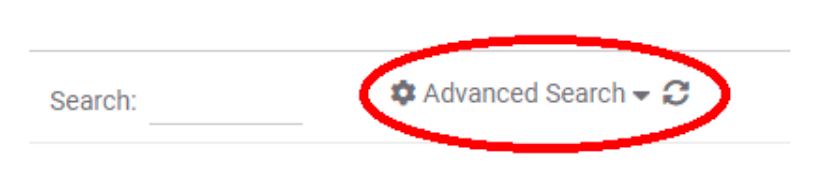
Advanced Search: This option only appears in the “Document List” module, but it allows you to look for documents in a specific date range.
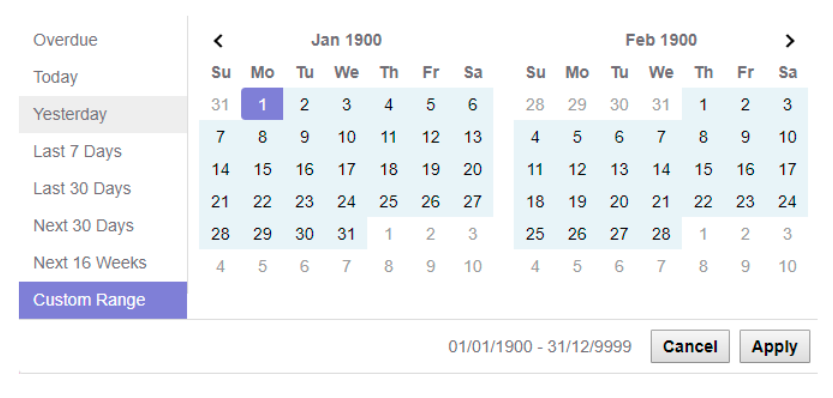
This section will let you choose to view orders that are in one of several predefined date ranges, overdue orders, or to enter your own custom date range.
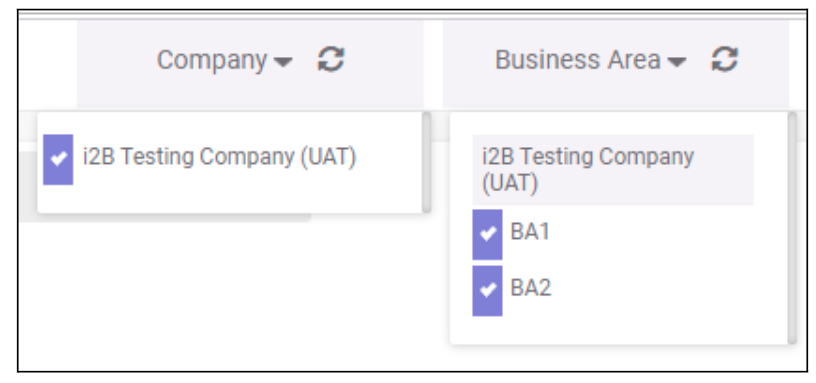
Company: If you have access to view orders from more than one company, you can choose which companies data to view from the drop down list.
Business area: If any of the companies you deal with through i2B are divided into Business Areas, you can choose which ones to view from the drop down list. (See example below)
Language Option: Choose from the drop down list of available language options, in which to view the system.
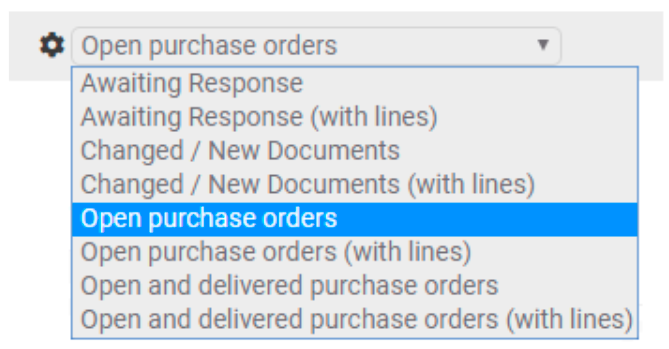
Filter display: Some screens will allow you to filter the displayed results, using the drop down list directly above the data. For example, the “Documents List” display allows you to display just documents needing a response, those that are new or changed, just open orders, and both open and delivered orders. Additionally you can view just the header level information, or the line level data. See image below:
Column Sorting: Clicking on any of the column headings, will sort your display by that column (ascending order). Clicking it again, will change to a descending order.
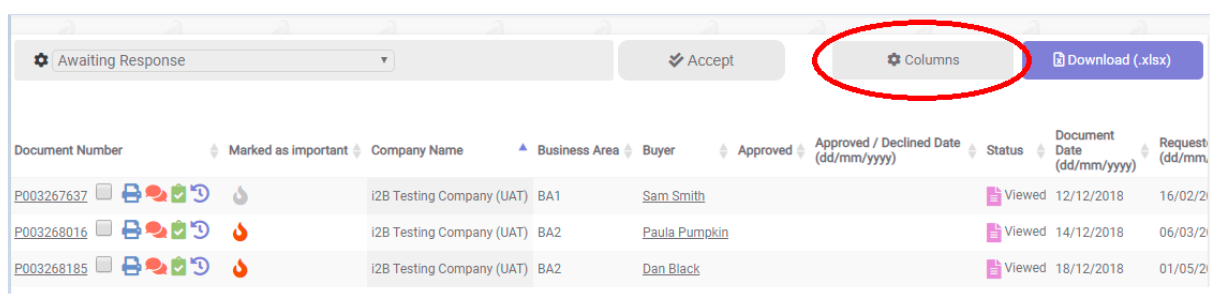
Column Selection: On each section of i2B Connect, you can tailor the data columns displayed by selecting or deselecting the available columns. Just click on the “Columns” button, as shown below.
Your User Profile
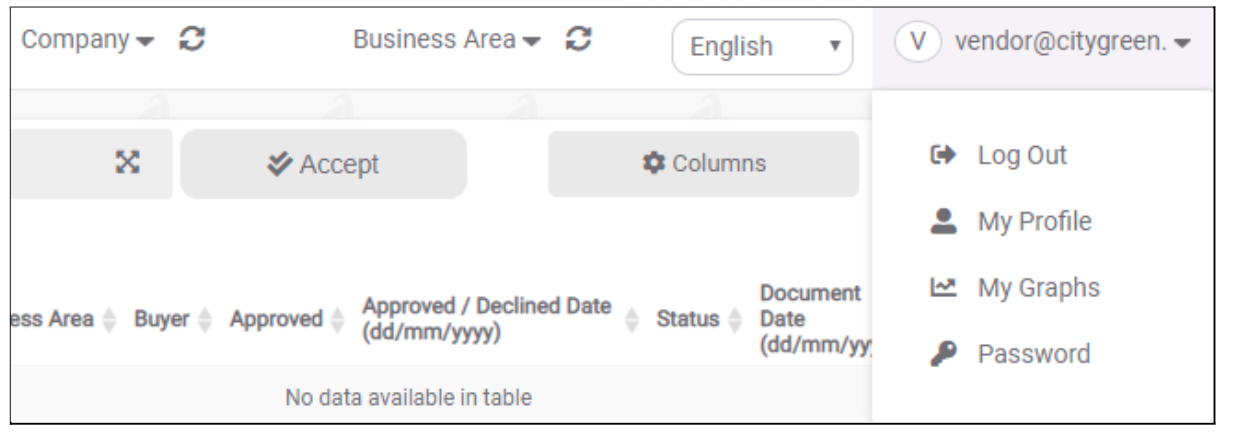
In addition to the filter and display options, the top right corner of the screen allows you to change your user profile, or log out of the system.
Click on your username, in the top left hand corner of the screen to see your profile options.
My Profile
Update your profile details here. You can set your profile picture, welcome message, change your email address, customise what numeric separator you prefer (decimal/thousands) and set your preferred date format.
My Graphs
You can use this option to set your preferences, for the graphs displayed on your dashboard.
Password
Here you can change your profile password - by entering your current, and your new chosen password.
NB: The password has to be a minimum of 8 characters long and include 1 uppercase, 1 lowercase and 1 special character.
Once updated, your new password is active. You can “Log Out” - from the drop down list, when clicking your username - and log back in again using your new password at any time.
0 Comments