The order is in a re-approval cycle
When an order is changed in the your back office system, for example if the price or quantity has changed, then the order status changes in both your back office and in i2B connect.
Stage one - Order set to approval in back office
When an order is new the approval status is blank (no re-approval requested), once the order has been sent for re-approval the status of the order within your back office system.
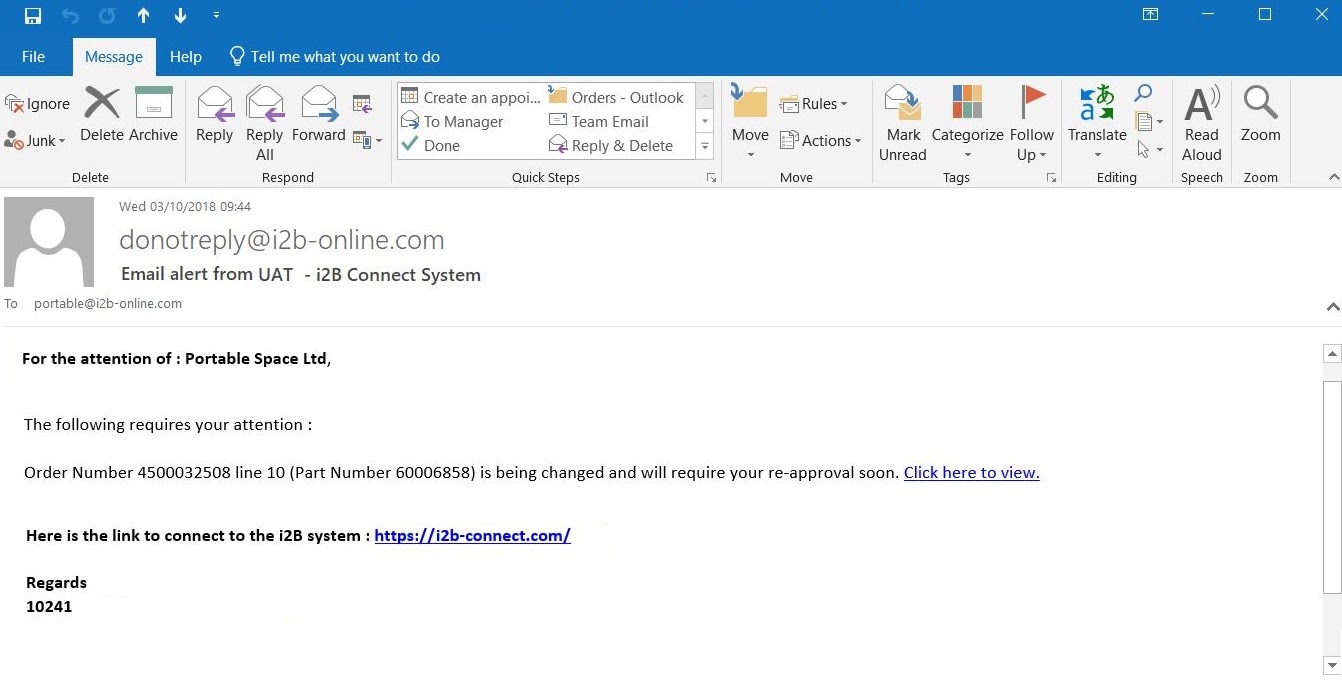
Once this data has been refreshed into i2B then an alert will be sent to your Vendor advising that the status of the order has changed.
The first alert will contain the wording that the order “is being changed and will require your re-approval soon”
This alert (a red flag in the re-approval column within i2B Connect) is for information purposes only, it is advising your Vendor that the order is going through a change within your back office.
Within i2B connect the re-approval flag will be set next to the order in the document overview screen.
Stage two - Order is approved in your back office system
When the order has been approved in your back office system this changes the status of the order to approved.
During the next refresh of your data into i2B connect two things will happen.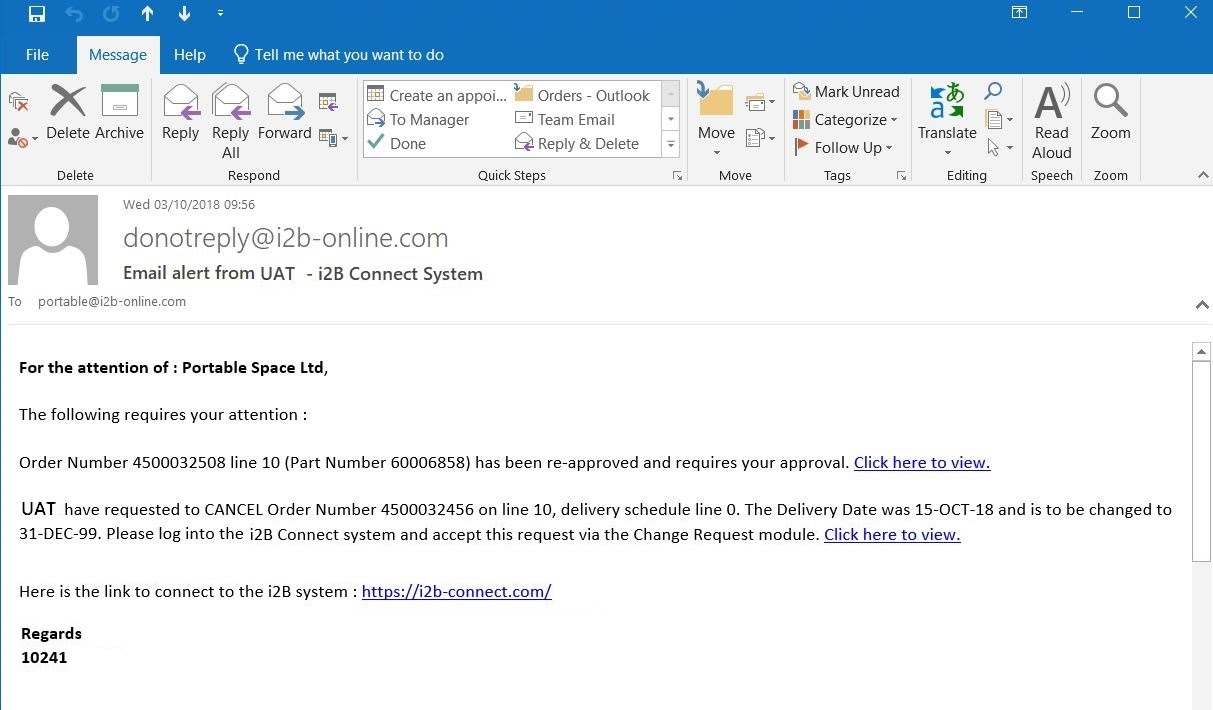
Firstly your vendor will receive an email alert alert containing the wording “has been re-approved and requires your approval” .
On the same email alert you will have received a brief description as to what has changed.
The second is that the status of the order changes on the documents page, the re-approval column will show that the order is “awaiting re-approval” with your vendor. This is shown with an AMBER flag.
Here is a link to the document as to how your vendor re-approves the order.
Stage Three - Order is re-approved by your vendor
When your vendor has re-accepted the order then the status in the re-approval column will change to a green tick and an email alert will be sent to both your vendor and you that the order has been accepted.
Change of status
If you are not a lite user then you will have access to the document overview screens. On these screens there is a column which indicates if the order is under re-approval.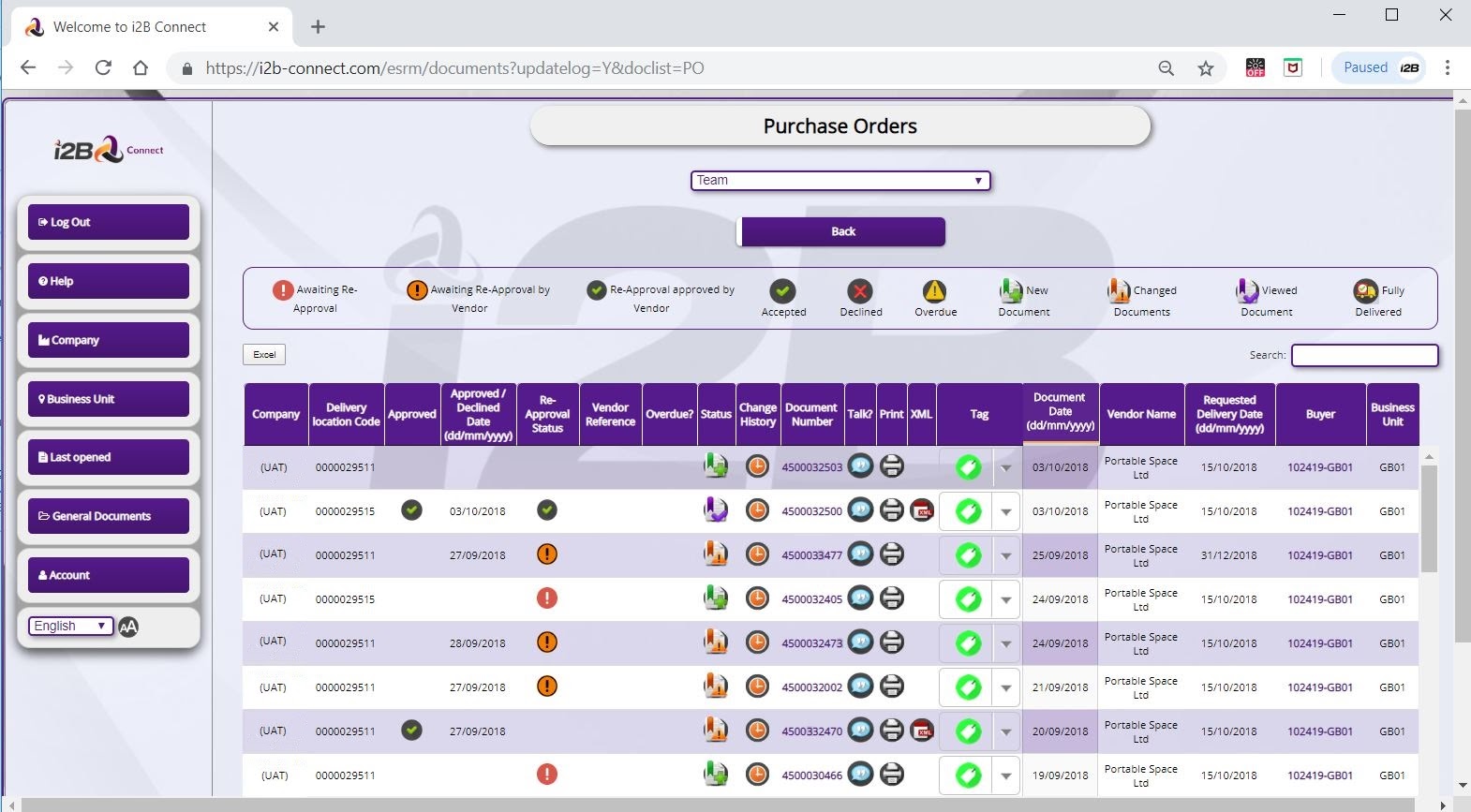
There are 4 status in the re-approval column:-
- Blank - order has never been under re-approval
- No action required
- Red - the order is under re-approval with you.
- Awaiting internal action from your back office system.
- Email alert is sent advising that the order has been set to an approval state.
- Order history associated with the order is updated of the new status.
- Amber - the order has been approved and is awaiting re-approval from your vendor
- Order is awaiting approval from Vendor.
- Email alert is sent advising that the order has changed and re-approval of the order is required from your vendor.
- Order approved flag from the “approval” column is removed.
- The order history associated with the order is updated with the new status.
- Green - the order has completed the re-approval process.
- Order has been approved by your vendor
- Email alert advising that the order has been accepted by your vendor.
- Approved column now shows green tick.
- Order history associated with the order is updated with the new status.
* An order can go from green to red should the order require a second re-approval.
Points to note about the approval status
- When an order is an an approval cycle this DOES NOT affect shipping notifications and these can be raised at any point after an order has been accepted by your vendor.
- If an order has been fully delivered and is placed in the re-approval cycle by you then your vendor will not be required to re-accept the order once it has been re-approved.
- It is possible for an order to be both in a re-approval cycle and also be requested for cancellation.
- If an order is required for re-approval by your vendor and this is not actioned after the first email then reminder email alerts will be sent.
0 Comments